 We all want to take efficient notes, don’t we? But it’s not as easy as it seems, right? With so many digital note-taking apps like Obsidian, Notion, Apple Notes, and others, the first step is to choose one that suits your needs. Once you’ve done that, you can dive into writing!
Personally, my choice is Obsidian. Why? Because it allows you to store your data (notes) both locally on your device and in the cloud. That’s a huge advantage for people like me who value privacy. In today’s world, privacy is more important than ever.
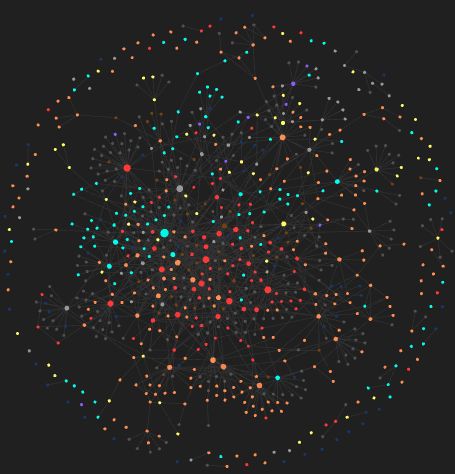
Well, you can ask me why Obsidian?
Here are a few reasons why I think Obsidian is a standout tool:
- Local Storage: You can save your notes directly to your computer, which ensures you always have control over your data.
- Markdown Support: Obsidian uses markdown, which means that even if the app stops working, your notes can easily be used in other markdown-compatible apps.
- Customizable Plugins: There are plenty of plugins available to tailor your note-taking experience to your needs.
- User-Friendly: The interface is straightforward and easy to use, even for beginners.
- Cross-platform support: You can access your notes via computer and mobile phone.
- Lightweight and fast: Everything is so smooth in obsidian. You can access your notes instantly via one click!
“The discipline of writing something down is the first step toward making it happen.” ~ Lee Iacocca
How to Get Started with Obsidian
Using Obsidian is incredibly simple. Just download the app, and you’re good to go. While many people recommend installing various plugins, you don’t need them right away. The default version of Obsidian is more than enough for basic note-taking. However, if you’re looking to customize your experience, a few plugins can make a big difference.
Recommended Plugins for Obsidian
Choosing the right plugins depends on how you use Obsidian, but here are some of my favorites:
- Calendar: This plugin is essential for me. It helps me plan my day and keeps track of important dates. Day Planner: Perfect for organizing your day, week, or month in a structured way.
- Editing Toolbar: Adds a toolbar with features like color selection, alignment options, and headers, making editing more convenient.
- Iconize: If you like a colorful, visually engaging setup, this plugin lets you add icons to your folders.
- Kanban: Manage your workflow with columns like “In Progress,” “Cancelled,” and “Waiting.”
- Remotely Save: If you don’t use Obsidian’s premium plan, this plugin allows you to save your notes to cloud services like OneDrive, Google Drive, or other storage options.
- Tasks: A fantastic plugin for creating and managing checklists.
- Templater: Ideal for repetitive tasks. For example, if you frequently create templates (like for learning vocabulary), this plugin saves time by automating the process.
- Dataview: This is highly recommended by many users. It’s great for creating dynamic tables, though I don’t personally use it in my setup.
That’s about it! Just install the app and start taking notes. I hope you find it helpful. Personally, I only use these plugins in my Obsidian setup, and I think they’re sufficient for a wide range of use cases. However, if you feel they’re not enough, you can easily install additional plugins to suit your needs.
See you in the next post! Have a great day!